
UZ7HO’s Easyterm Install & Setup
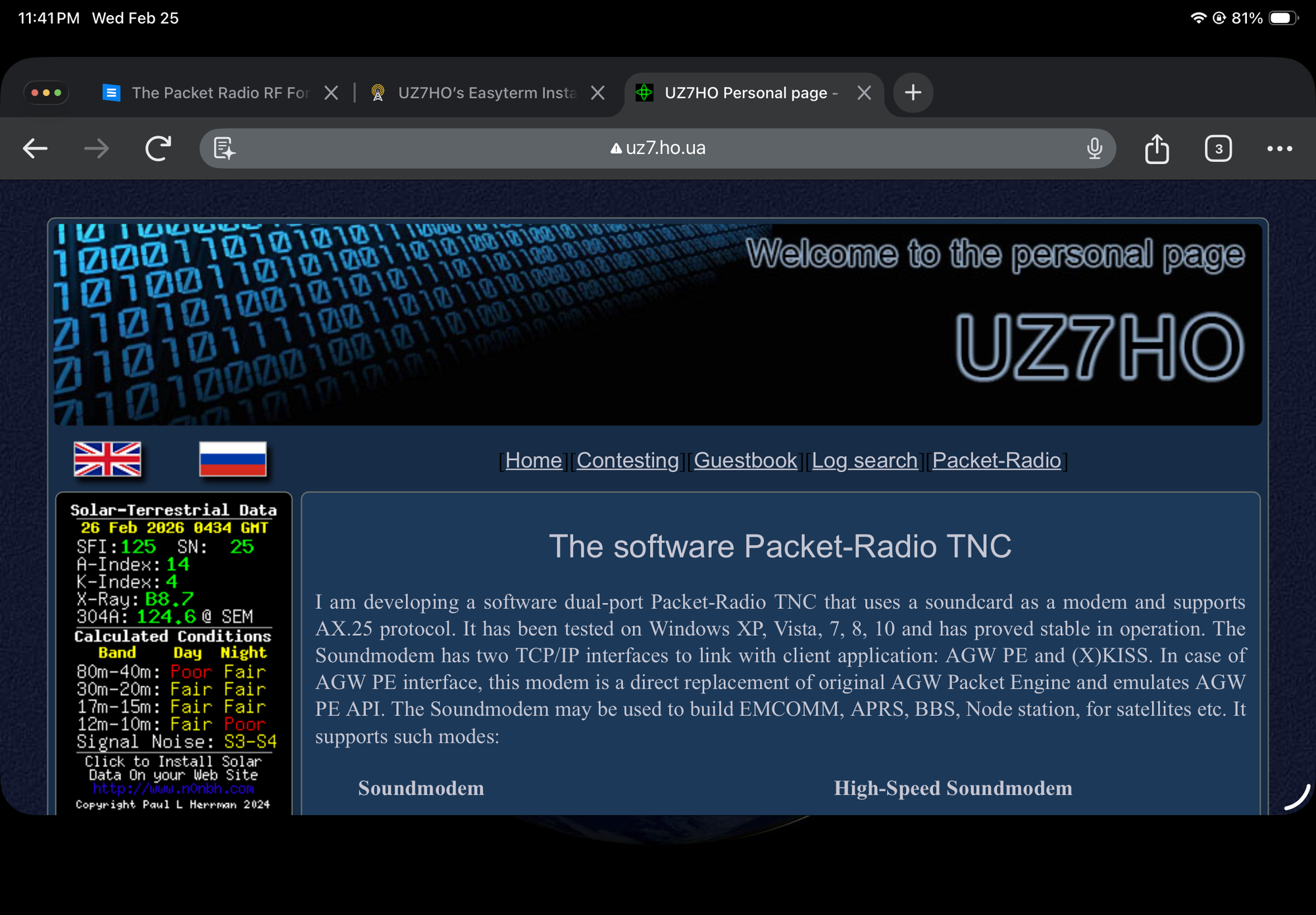
UZ7HO’s EasyTerm is a lightweight, high-performance packet radio terminal specifically designed to work seamlessly with the Soundmodem software TNC. It is a favorite among amateur radio operators for its simplicity and robust "AgwPe" engine compatibility.
1. Prerequisites
Before installing EasyTerm, ensure you have the following ready:
• Soundmodem (UZ7HO): EasyTerm does not decode audio itself; it acts as the user interface for Soundmodem.• VB-Audio Cable: (If using a software-defined radio or certain digital setups).
• A Valid Callsign: You’ll need this to configure the TNC.
2. Installation
EasyTerm is "portable" software, meaning it doesn't use a traditional Windows installer.1. Download: Visit the UZ7HO Downloads page and download the easyterm.zip file.2.
Extract: Create a dedicated folder (e.g., C:\HamRadio\EasyTerm) and extract all files from the ZIP into it.
• Note: Avoid putting it in "Program Files" to prevent Windows permission issues with configuration files.3. Launch: Double-click Term.exe to start the application.
3. Configuration & Setup
To get EasyTerm talking to your radio, you must link it to your TNC (usually Soundmodem).
Step 1: Link to Soundmodem (AGWPE Port)1. Open Settings > Station Setup.
2. Host/Port: By default, EasyTerm looks for Soundmodem on 127.0.0.1 (localhost) using port 8000.
3. Ensure your Soundmodem software is running and that its "AGWPE Server Port" matches the one in EasyTerm.
4. Callsign: Enter your callsign and SSID (e.g., W1AW-7).
Step 2: Modem Settings
1. Go to Settings > Modem Settings.
2. Select the TNC Type (usually "AGWPE").
3. Choose your Radio Port. If you only have one radio connected to Soundmodem, this is typically Port 1.
4. Using EasyTerm Monitoring Traffic
Once connected, you will see raw packet data scrolling in the Monitor Window (usually the bottom or side pane). This confirms your Soundmodem is successfully passing decoded data to EasyTerm.Initiating a Connection
1. Click the Connect button (or press F2).
2. Callsign: Enter the target station's callsign.
3. Via: If you need to use a digipeater, enter its callsign here.
4. Click OK. The status bar will change from "Disconnected" to "Connecting..." and then "Connected" once the handshake is complete.Sending Data
• Type your message in the bottom text entry box.• Press Enter to send the packet.
• To end a session, click Disconnect (or press F4).
5. Pro Tips for EasyTerm
• Multi-Connect: EasyTerm supports multiple simultaneous connections. Use the tabs at the top to switch between different active stations.
• Beacons: You can set up automatic beacons in Settings > Beacon Setup. This is useful if you want to announce your station's presence to the local packet network.
• Logging: EasyTerm can automatically log your contacts. Check Settings > Log Setup to enable this feature.
Video Link: click here