
Quickest User Setup For Accessing TPRFN
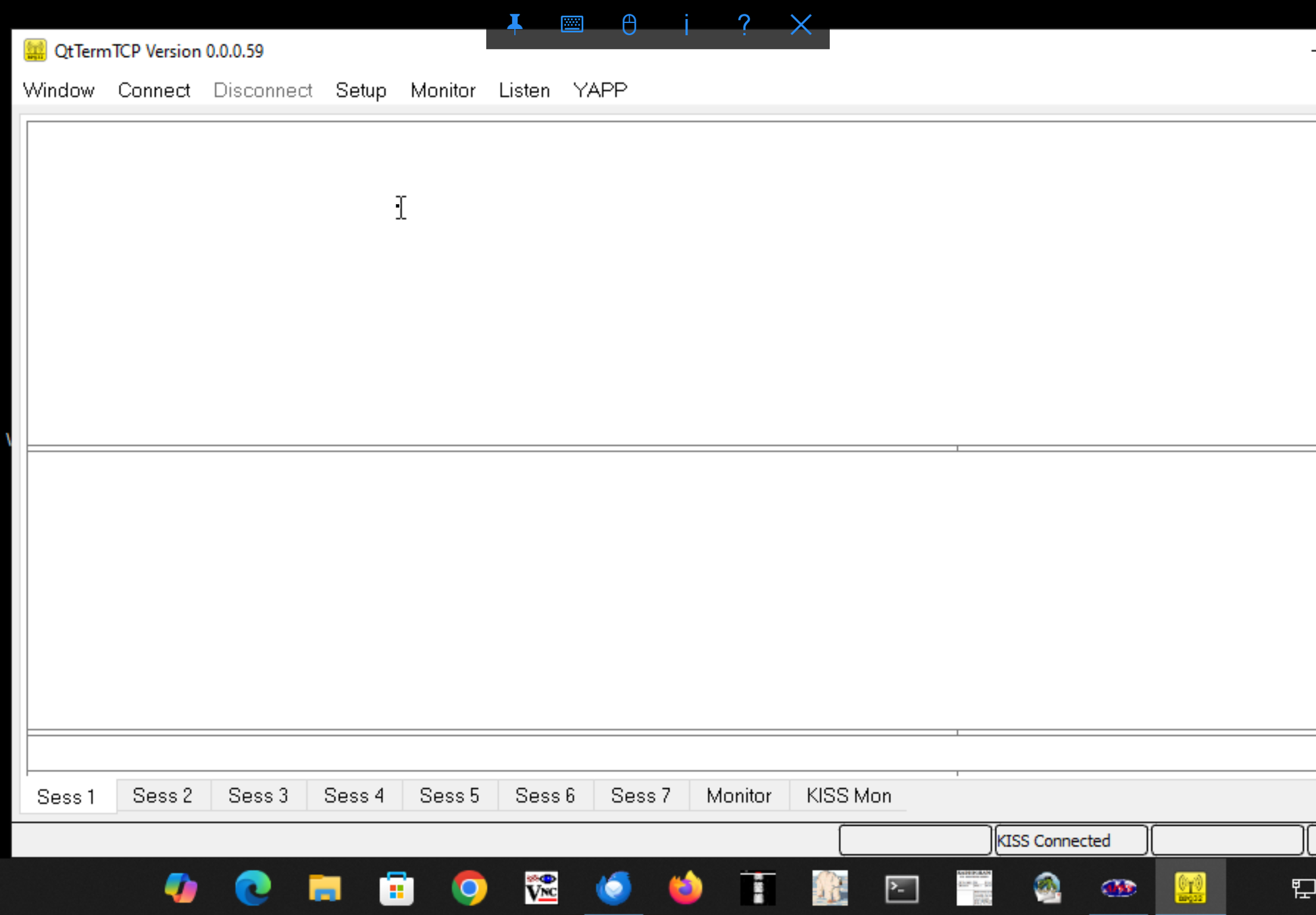
Here is the complete setup guide for configuring QtTermTCP (developed by G8BPQ) to connect directly to KISS TNCs (hardware or software like Dire Wolf) and the VARA Modem suite (HF/FM).1. Initial Setup & PrerequisitesBefore configuring your interfaces:
- Directory Rule: QtTermTCP saves its configuration file (QtTermTCP.ini) in the exact folder where the executable lives. Make sure it is saved in a non-protected directory (e.g., C:\HamRadio\QtTermTCP\ on Windows or ~/QtTermTCP/ on Linux).
- Callsign Settings: Ensure you have your main amateur callsign ready.
2. Configuring a KISS ConnectionUse this option if you are using a Hardware TNC (NinoTNC, Mobilinkd, Kantronics) over a serial port, or a Software TNC (Dire Wolf, Soundmodem) over a TCP network socket.Step-by-Step Configuration:
- Launch QtTermTCP.
- Click Setup in the menu bar and select KISS Setup.
- Check the box to Enable KISS Interface.
- Enter your Callsign (e.g., W1AW-7 or N0CALL).
Choosing your Connection Mode:Option A: Hardware TNC (Serial Port)
- Serial Device: Select your TNC’s COM port (Windows, e.g., COM3) or serial device path (Linux, e.g., /dev/ttyUSB0).
- Baud Rate: Set the speed matching your hardware TNC’s USB/Serial interface.
- Note: Standard for NinoTNC is 57600; older TNCs like a KPC-3+ often default to 9600 or 19200.
Option B: Software TNC (TCP Socket - e.g., Dire Wolf / Soundmodem)
- Serial Device: Change the drop-down menu to TCP.
- IP Address: Set to 127.0.0.1 (if the software TNC is on the same machine) or the local network IP if on another PC/Raspberry Pi.
- Port: Set the KISS TCP port.
- Default for Dire Wolf: 8001
- Default for UZ7HO SoundModem: 8001 or 8100 (depending on configuration)
- Click OK.
- Look at the status bar at the bottom: it should display "KISS Connected".
3. Configuring a VARA ConnectionQtTermTCP supports direct native interaction with VARA HF, VARA FM, and VARA SAT.Step-by-Step Configuration:
- Make sure your VARA Modem software (VARA HF or VARA FM) is installed on your system.
- Open QtTermTCP and go to Setup > VARA Setup.
- Fill out the configuration fields:
- VARA Executable Path (Optional): Click browse to select your VARA .exe file path (e.g., C:\VARA\VARA.exe or C:\VARA FM\VARAFM.exe). If provided, QtTermTCP will automatically launch the VARA modem program for you when opened.
- IP Address: Set to 127.0.0.1 (Loopback for local machine).
- Command / Data Ports:
- VARA HF Default: 8300
- VARA FM Default: 8310
- Click OK to save.
Tip on VARA Display Mode: VARA only supports one active connection session at a time and does not output raw packet monitoring data. For the cleanest experience while using VARA, set your QtTermTCP window layout to Single Window (Term Only) via Window > Display Mode.4. Initiating ConnectionsOnce your interfaces are configured, connecting to remote nodes or BBSs is straightforward:
| Target Modem | How to Initiate |
| KISS (Packet) | Go to Connect > KISS Connect. Enter the target callsign (and optional Digipeaters separated by spaces). Click OK. |
| VARA | Go to Connect > VARA Connect. Enter the target callsign and select your connect path (Direct or via Relay). Click Connect. |
Troubleshooting Common Issues
- "KISS/VARA Connection Refused": Ensure that the software TNC or VARA program is currently running, and check that Windows Firewall is not blocking internal loopback ports 8001, 8300, or 8310.
- Garbled Text in KISS (Serial): Verify that the baud rate in QtTermTCP matches the interface speed of your physical TNC, not the over-the-air RF baud rate.
Download links
Here are the direct official download locations for QtTermTCP and the associated modem software referenced in the guide:1. QtTermTCPMaintained by John Wiseman (G8BPQ).
- Windows (ZIP): QtTermTCP Windows Release
- Linux Binaries:
- Android (APK): QtTermTCP Android Package
- Source Code: QtTermTCP GitHub Repository
2. VARA Modem SuiteCreated by José Alberto Nieto Ros (EA5HVK). Download installers directly from the official Winlink directory:
- VARA HF: VARA HF Latest Release (Download VARA HF vX.X.X setup.zip)
- VARA FM: VARA FM Latest Release (Download VARA FM vX.X.X setup.zip)
- VARA SAT: VARA SAT Latest Release (Download VARA SAT vX.X.X setup.zip)
3. Software Soundcard TNCs (KISS Interfaces)
- Dire Wolf (Multi-platform KISS TNC):
- GitHub Releases: Dire Wolf Releases Page
- UZ7HO SoundModem:
- Windows Original: UZ7HO Packet Radio Page
- QtSoundModem (Cross-platform): QtSoundModem Documentation & Downloads
Video link to assist with this setup: https://youtu.be/R2DOjAbUn6A?is=I1AOqWPlguDep2sP