
Reporting Packet to PSKReporter
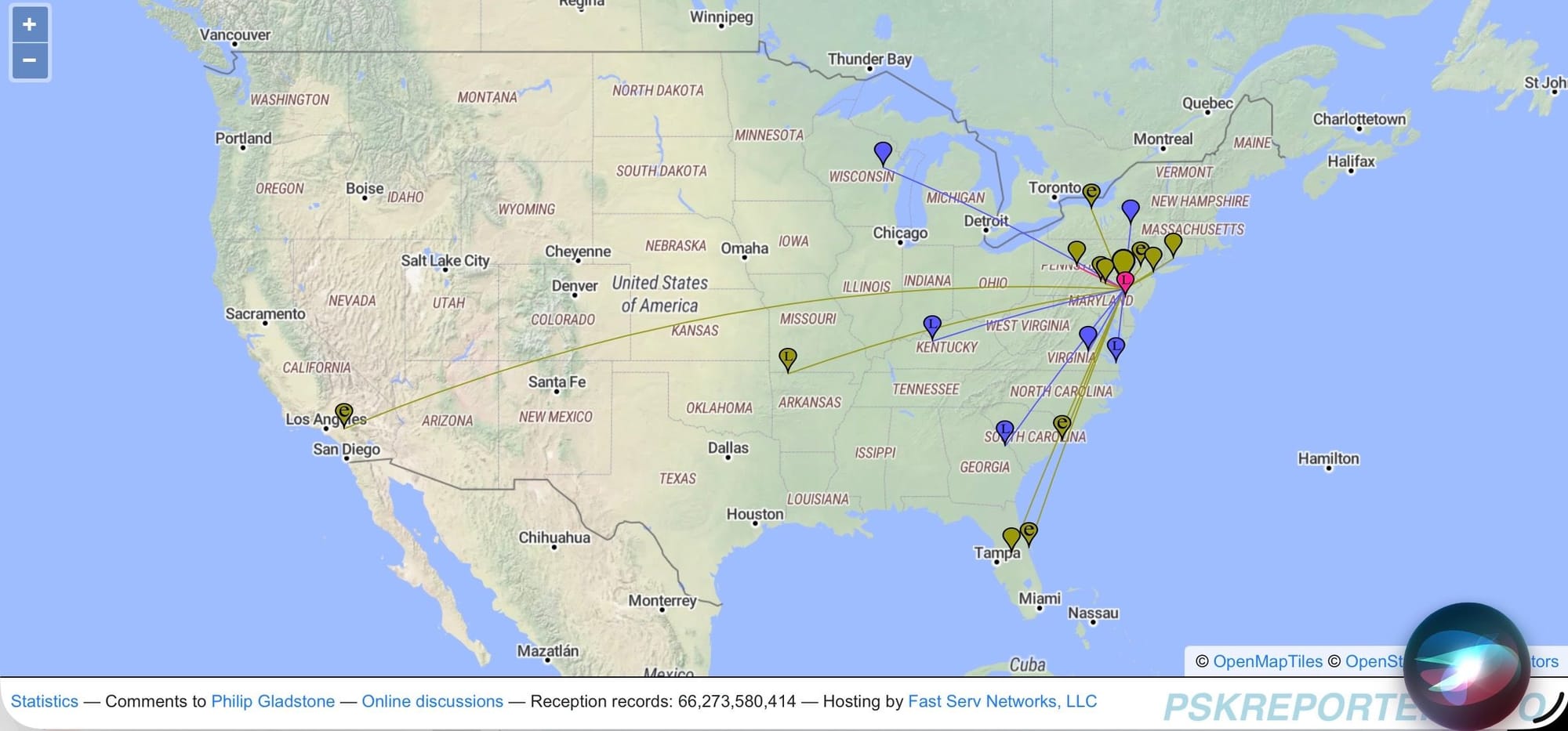
This Python script is a PSK Reporter Watcher designed to monitor LinBPQ BBS logs and automatically report stations you hear to the pskreporter.info map.
Here is a step-by-step guide to setting it up, adjusting the configuration, and monitoring the output. This code comes with no guaranties use at your own risk!
UPDATED 3-5-26: I had to make a change in the install instructions to make sure you are using the correct code & file name.
1. Preparation & Requirements
The script uses standard Python 3 libraries, so no external "pip" installs are required.
- Python 3: Ensure it is installed (python3 --version).
- LinBPQ Logs: Your LinBPQ must be configured to generate BBS logs. In your bpq32.cfg, ensure you have logging enabled for the BBS or the ports you wish to monitor. The script specifically looks for files named log_*_BBS.txt.
2. Adjusting the Code (Configuration)
Before running the script, you must edit the following variables in the --- CONFIGURATION --- section to match your station:
- Station Identity:
• MY_CALL: Change "to your callsign"- MY_GRID: Change "to your grid" to your 6-character Maidenhead grid square.
- Paths (Crucial):
• LOG_DIR: Change "/home/pi/linbpq/logs/" to the actual path where LinBPQ saves its logs.- SCRIPT_LOG_FILE: Update the home directory name if your Linux username is not n3mel.
- Frequency Logic:
• DAY_START_HOUR / DAY_END_HOUR: The script toggles frequencies based on these times (24h format).- STATION_SCHEDULES: This is a dictionary of specific stations and their frequencies. If a station isn't listed here, it falls back to STATION_FREQS or the default 145070000 (145.070 MHz). Update these to the frequencies used in your local network.
Note on Logging: The script defines SCRIPT_LOG_FILE but the current code only prints to the console (logging.StreamHandler). To make it save to a file as well, change the logging setup (lines 81-87) to:
Python
logging.basicConfig(
level=logging.INFO,
format='%(asctime)s - %(message)s',
handlers=[
logging.StreamHandler(),
logging.FileHandler(SCRIPT_LOG_FILE)
]
)
3. Setting up the Script on Linux
- Save the file: File named psk.py in your home folder.
- Make it executable:
Bash
chmod +x psk.py - Test Run: Run it manually first to see if it picks up the latest log:
Bash
python3 psk.py
4. Making it Run Automatically (Systemd)
To ensure the script starts when the computer boots and stays running in the background, create a systemd service.
- Create the service file:
Bash
sudo nano /etc/systemd/system/psk-watcher.service - Paste the following (adjusting /home/n3mel to your actual path):
[Unit]
Description=LinBPQ to PSK Reporter Bridge
After=network.target
[Service]
# Run as your user
User=yours
WorkingDirectory=/home/yours
# Make sure this matches your actual filename
ExecStart=/usr/bin/python3 /home/yours/psk.py
Restart=always
RestartSec=10
# Logging activity to your home directory
StandardOutput=append:/home/yours/psk_watcher_debug.log
StandardError=inherit
[Install]
WantedBy=multi-user.target - Enable and Start:
Bash
sudo systemctl daemon-reload
sudo systemctl enable psk-watcher
sudo systemctl start psk-watcher
5. Monitoring the Logs
To see what the script is doing in real-time (who it is hearing and reporting), use the tail command on the log file you defined:
Bash
tail -f /home/n3mel/psk_watcher_debug.log
If you are running it as a systemd service, you can also view the live output using:
Bash
journalctl -u psk-watcher -f
Troubleshooting
- "No log files found": Double-check your LOG_DIR path. Ensure the user running the script has permission to read the LinBPQ log directory.
- "Script already running": The script uses a psk_watcher.lock file in /tmp. If the script crashes, you might need to delete that file manually (rm /tmp/psk_watcher.lock) to restart it.
- Not appearing on PSK Reporter: It takes about 1-2 minutes for reports to show up on the map. Search for your callsign as the "Receiver" on the PSK Reporter Map.
6. LINUX CODE HERE: Python Code Link C&P code into new file named psk.py
LINUX RF ONLY CODE HERE: RF Only Python Code